
Overview
Email Configuration
Connect your Gmail or Outlook account so event invitations come from your actual email address. Emails land in your sent folder, replies hit your inbox, and guests see a name they recognize.
If it looks automated. It lands in spam, and the relationship is over before the event starts.
Gatsby sends from your actual email account. The invite comes from you, lives in your sent folder, and replies go to your inbox.
Gmail or Outlook
Connect your account in two clicks. Best for relationship-driven events under 500 recipients.
SendGrid
One connection the whole team shares. DNS-level setup for high volume, custom addresses, and branded notification emails.
Sending From Your Own Account
Section titled “Sending From Your Own Account”Connect your Gmail or Outlook to send invitations from your actual address. Recipients see your name. Emails appear in your sent folder. Replies arrive in your inbox. Your IT team’s spam filters trust it because it comes from your domain.
An LP dinner invitation from “Sarah Chen” lands differently than one from “events@platformname.com.” That’s the whole point.
Connect Gmail
-
Navigate to Team Settings from your Gatsby dashboard.
-
Click the Linked Services tab.
-
Select Google under Each person signs in, then choose how it connects.
Connect — send only grants sending and nothing else. Connect — send + bounce tracking adds two things: Gatsby reads incoming bounce, out-of-office and auto-reply messages so bad addresses get suppressed across all your events, and it can add events to your calendar when you RSVP from Gatsby.
Both run the same Google sign-in, and you can start with send only.
-
Select your account in the popup and accept permissions.
Your Gmail address is now available as a sender option in campaigns.
Connect Outlook
Works with personal Outlook.com accounts and corporate Office 365. Your Microsoft account must be cloud-hosted. Gatsby uses the Microsoft Graph API, which on-prem Exchange servers do not support.
-
Navigate to Team Settings from your Gatsby dashboard.
-
Click the Linked Services tab.
-
Select Outlook under Each person signs in, then click Link an Outlook Account.
-
Enter your credentials when prompted.
Your Outlook address is now available as a sender option.
Connections don’t last forever. Google and Microsoft both expire the authorization periodically, and when that happens Gatsby prompts the account owner to sign in again — only they can do it, the same as the initial connection. Expect to re-authorize every so often rather than once. If a send fails, check Team Settings » Linked Services for a status update.
Automatic emails (confirmations, waitlist notices, reminders) require SendGrid precisely because it never expires.
Invite a teammate to connect their account
You don’t have to wait for a colleague to set up their own account. If you can manage linked email settings, you can send them an invite and let them connect in about 30 seconds, without ever seeing or handling their password.
-
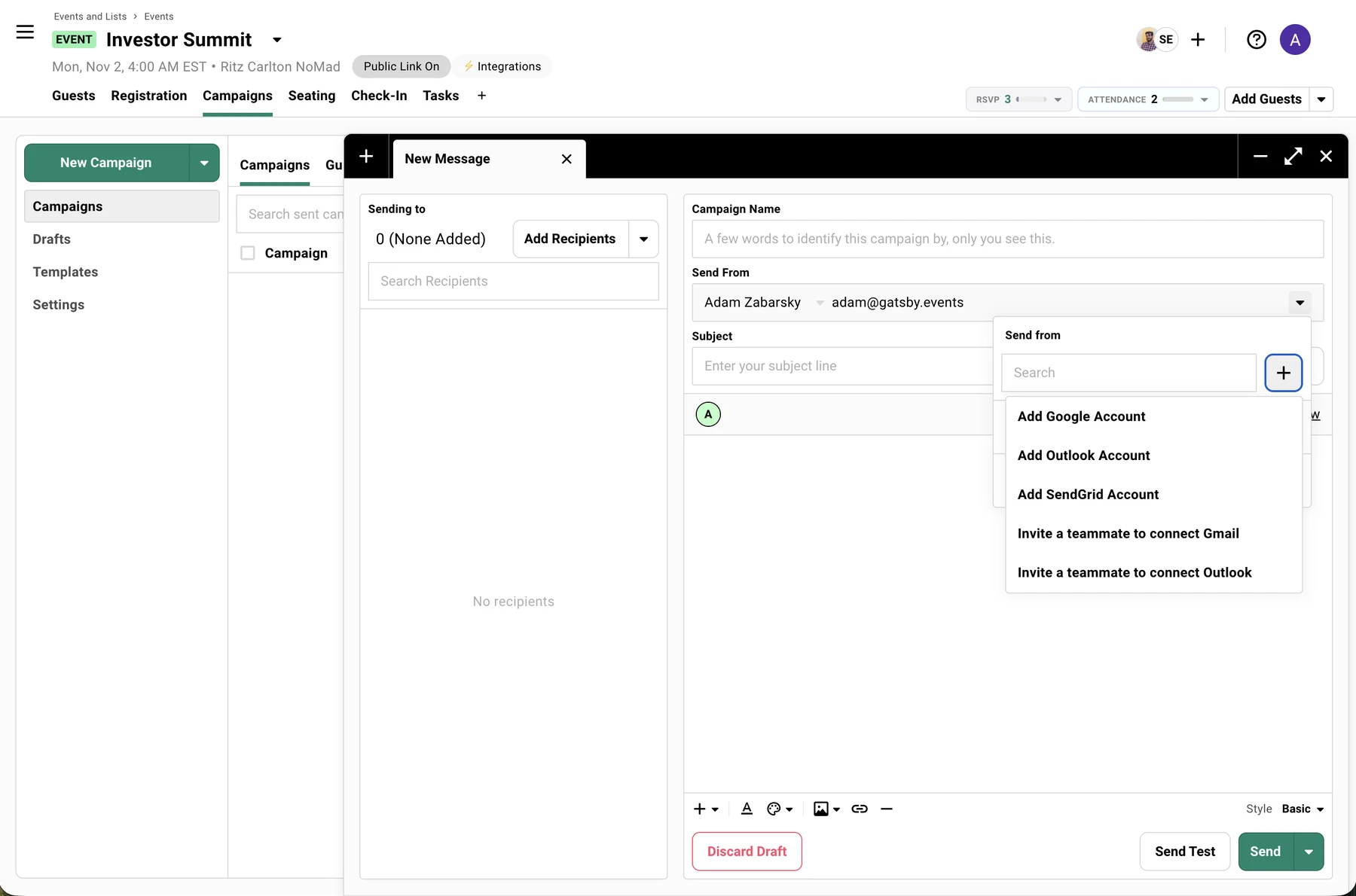
Go to Team Settings » Linked Services and click Invite a teammate from either the Google or Outlook section. You can also start this from a campaign: click the + on the send-from dropdown and choose Invite a teammate to connect Gmail or Invite a teammate to connect Outlook.
-
Pick the team member or External Collaborator you want to invite. They have to exist on your account first — the picker only lists people already added under Team Members. If the colleague you want isn’t in the list, add them as a team member first, then come back here.
-
Set how the account connects. Gmail offers Send Only or Send + Bounce Tracking; Outlook connects with send access only. Then set how their name appears in the From: line and pick which teammates can send campaigns as them.
-
Review and send. They receive an email, sign in with Google or Microsoft, and approve the permission.
Once they accept, their account appears in Linked Services and becomes available as a sender for the team. They can revoke access anytime from their own settings.
What Happens After You Connect
Once connected, any team member can select your address when composing a campaign. Emails appear in your sent folder. Replies come to your inbox unless the sender sets a different reply-to address.
You can revoke access anytime from Team Settings » Linked Services.
Connecting a sender is separate from resolving addresses that have bounced or been blocked. See Team Settings » Bounce Management to review and clear those.
Sending Limits
Two different kinds of limits apply. Google and Microsoft set their own provider-side sending caps for Gmail and Office 365 accounts, and those caps vary by plan and can change without notice. Separately, Gatsby staggers sends from connected accounts to avoid looking like a mass emailer, which adds its own pacing on top of the provider limit.
For personal, relationship-driven events, these limits rarely matter. A dinner invitation going to 80 people is well under the threshold. If you’re regularly sending to thousands, you need SendGrid.
Gatsby is SOC 2 Type II certified. Send only grants permission to send and nothing else, and it is the only option Outlook offers. Send + bounce tracking also reads incoming bounce, out-of-office and auto-reply messages, and reads and updates your Google Calendar.
Gatsby never reads your regular conversations. Only failure notifications, auto-replies and mailer-daemon errors are processed.
Setting Up SendGrid
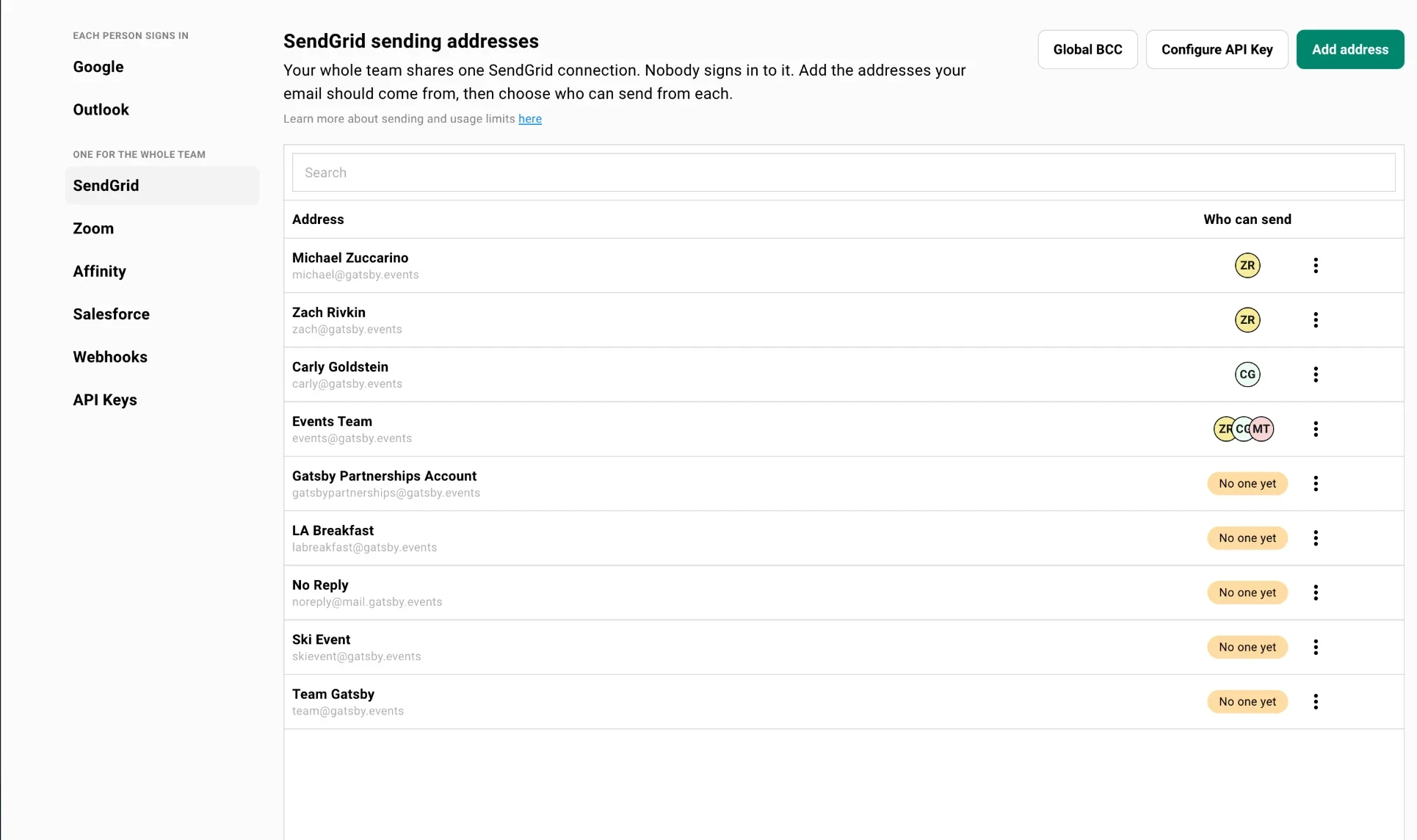
Section titled “Setting Up SendGrid”SendGrid works differently from Gmail and Outlook. Those are per person: each teammate signs into their own mailbox, and the connection belongs to them. SendGrid is one connection for the whole org. Nobody signs into it, and there is no personal SendGrid account to hand someone.
What you manage is a list of sending addresses. Each one is an address your email can come from, and all of them send through the same connection. The person an address belongs to never has to touch Gatsby.
SendGrid requires DNS configuration. Your IT team adds records to your domain so Gatsby can send authenticated email on your behalf.
Setup Process
-
Contact Gatsby support. We provide SPF, DKIM, and DMARC records for your IT team.
-
Your IT team adds those records to your domain’s DNS.
-
Verify completion with Gatsby support.
-
In Team Settings » Linked Services, select SendGrid. It sits under One for the whole team, below the Each person signs in group that holds Google and Outlook.
-
Click Add address. Enter the name recipients will see, then the part of the address before the @, and pick the domain beside it.
The domain list holds the domains Gatsby has verified for you, so you can only build an address that will actually send. One verified domain shows next to the field instead of a list.
That address is now available for campaigns.
Who Can Send From Each Address
Your address list has an Address column and a Who can send column. The second one shows who on your team is allowed to send campaigns from each address.
-
Click the three dots on the address row and choose Edit Who Can Send.
-
Check anyone who should be able to pick that address when they write a campaign. Everyone listed is already on your team.
-
Click Save.
Two things behave on their own. If the address is a teammate’s own login email, that person is always included and cannot be unchecked, because the address is theirs. And if nobody can send from an address, the row reads No one yet and that address shows up in nobody’s send-from dropdown.
The same menu holds Edit Display Name, which changes the name recipients see, and Remove Address, which takes the address off the list. Remove Address is red because it is the one entry there that removes something instead of opening an editor.
If you have no Who can send column, your org doesn’t restrict addresses this way. Everyone on your team can send from every address on the list, and the row menu has no Edit Who Can Send entry.
What SendGrid Gets You
- No daily send limits. Send thousands without throttling.
- Custom addresses. Use events@company.com or invites@company.com. The inbox doesn’t need to exist.
- Notification emails from your domain. RSVP confirmations, waitlist notices, and event updates come from your brand instead of Gatsby’s.
- Deliverability tracking. Monitor opens, bounces, and delivery issues.
Who Needs SendGrid
Most teams start with Gmail or Outlook and add SendGrid when volume grows. You need it if you:
- Send more than 300-500 emails per day
- Want shared addresses like events@company.com that nobody logs into
- Need automatic notification emails (confirmations, waitlist, updates) from your domain
If you’re running an annual conference for 2,000 people, you need SendGrid. If you’re hosting a dinner for 40, Gmail works fine.
External Collaborators
Section titled “External Collaborators”External Collaborators don’t see Team Settings. They connect their email from within a campaign.
Open any campaign in an event you’ve been invited to, click the + icon next to the “Send From” dropdown, and connect Gmail or Outlook directly. You can only send as yourself. You cannot access other team members’ accounts.
A team member can also invite you to connect. You’ll receive an email with a link to sign in with Google or Microsoft and approve sending on your behalf, no Team Settings access required.
Reconnecting an outside sender who has been disconnected.
Google and Microsoft expire their authorization periodically, so a partner, GP, or co-host sending through Gatsby will eventually show as disconnected and their sends will stop. There is no way to make the connection permanent — that expiry is set by Google and Microsoft, not by Gatsby.
What you can avoid is the coordination: don’t send an outside sender to Team Settings or back through a campaign. If you can access Team Settings » Linked Services, click the Invite a teammate to connect their inbox option from either Google/Outlook. They click through and approve in about 30 seconds without needing access to anything else in your account.
External Collaborators only see events they’ve been specifically invited to. They cannot send from other team members’ addresses or access the full Team Settings.
Common Questions
Section titled “Common Questions” Will sent emails appear in my sent folder?
Yes, for Gmail and Outlook. Emails appear in your sent folder automatically. For SendGrid, no. There’s no personal inbox to write to.
Can multiple people send from the same connected account?
Yes. Once someone connects their email, any team member can select that address as the sender. Your coordinator can send dinner invitations from the Partner’s email without the Partner touching Gatsby.
How do I connect a specific person's account to SendGrid?
You don’t. There is one SendGrid connection for the org and nobody signs into it, so there is no individual account to connect. Add the address you want their email to come from, then open Edit Who Can Send on that row and check their name.
What's the difference between Gmail/Outlook and SendGrid?
Gmail and Outlook connect your personal account. Simple setup, daily limits, emails in your sent folder. SendGrid removes limits and adds custom addresses, but requires DNS configuration by your IT team.
What are notification emails?
Automatic emails triggered by guest actions: RSVP confirmations, waitlist notices, event updates. These require SendGrid to send from your domain instead of Gatsby’s.
Can I connect my email later?
Yes. Go to Team Settings > Linked Services anytime. Add more accounts as your team grows.
Can I get a teammate connected without doing it myself?
Yes. From Team Settings » Linked Services (or the + on a campaign’s send-from dropdown), click Invite a teammate. Pick the person, set their options, and send. They sign in with Google or Microsoft and approve in about 30 seconds, and their account shows up as a sender for the team. You never see their password.
Does Outlook require cloud hosting?
Yes. Gatsby uses the Microsoft Graph API. On-prem Exchange servers are not supported. Your Outlook must be hosted through Office 365 or Outlook.com.